
Best Webcams for Remote Work and Zoom Meetings
Best Webcams for Remote Work and Zoom Meetings
Key Takeaways
A quality 1080p webcam is enough for most everyday remote work meetings.
The Logitech Brio 500 is a practical choice for everyday video calls.
The Anker PowerConf C200 offers useful features for budget-conscious buyers.
The Logitech MX Brio is a premium option for sharper video and more control.
The Insta360 Link 2 is useful for presentations and people who move while speaking.
Good lighting, camera placement, and a reliable internet connection matter as much as camera resolution.
Why a Good Webcam Matters for Remote Work
Your webcam is an important part of your home office setup. Whether you're attending Zoom meetings, speaking with clients, interviewing for a remote job, or presenting to colleagues, clear video helps you look professional and communicate confidently.
Many laptops include built-in cameras, but their image quality can be limited, especially in rooms with poor lighting. An external webcam can provide better image clarity, more flexible positioning, and useful features such as autofocus and privacy shutters.
The good news is that you don't need an expensive 4K camera to improve your video calls. The right webcam depends on your daily work, budget, and lighting conditions.
5 Best Webcams for Remote Work
Here are five options worth considering for different home office needs.
1. Logitech Brio 500 – Best for Everyday Video Calls
The Logitech Brio 500 is a practical webcam for remote employees, freelancers, and professionals who regularly attend online meetings.
It offers Full HD 1080p video, autofocus, and automatic lighting correction. Its Show Mode also lets you tilt the camera toward your desk to display notes, drawings, or physical objects during a presentation.
Key features:
Full HD 1080p video.
Automatic light correction.
Autofocus.
Adjustable field of view.
USB-C connectivity.
Integrated privacy shutter.
Best for: Everyday Zoom meetings, Microsoft Teams calls, and remote collaboration.
Consider it if: You want a dependable webcam without paying for advanced 4K features.
2. Anker PowerConf C200 – Best Budget Webcam
If you're upgrading from a basic laptop camera without spending too much, the Anker PowerConf C200 is worth considering.
This compact webcam supports 2K resolution and includes adjustable field-of-view settings. It also features automatic low-light correction and a built-in privacy cover.
Its compact design makes it suitable for smaller desks and home office setups.
Key features:
2K video resolution.
Adjustable field of view.
Automatic low-light correction.
Built-in privacy cover.
Integrated stereo microphones.
Best for: Students, freelancers, and remote workers on a budget.
Consider it if: You want a noticeable camera upgrade without investing in a premium model.
3. Logitech MX Brio – Best Premium Webcam
The Logitech MX Brio is designed for professionals who want more control over their video quality.
It supports 4K resolution at 30 frames per second and 1080p at up to 60 frames per second. It also includes autofocus, image adjustment controls, and a privacy shutter.
The camera is particularly useful for professionals who frequently join client meetings, record presentations, or create online content.
Key features:
4K Ultra HD video.
1080p at up to 60fps.
Advanced image controls.
Automatic exposure and white balance adjustments.
Built-in privacy shutter.
USB-C connectivity.
Best for: Consultants, business owners, and professionals who want a premium webcam.
Consider it if: You need high-quality local recordings and flexible image controls in addition to video meetings.
4. Insta360 Link 2 – Best for Presentations and Movement
The Insta360 Link 2 stands out because it uses a motorized gimbal to follow the presenter.
This feature can be especially helpful for online teachers, trainers, coaches, and professionals who move around while explaining something.
It supports 4K video and offers AI-powered tracking and framing features. Its flexible positioning makes it more versatile than a traditional fixed webcam.
Key features:
4K video resolution.
AI-powered tracking.
Motorized gimbal.
Automatic framing features.
Gesture controls.
Multiple presentation modes.
Best for: Online teaching, product demonstrations, presentations, and content creation.
Consider it if: You regularly stand up, move around, or demonstrate physical products during video calls.
5. Elgato Facecam MK.2 – Best for Video Quality Control
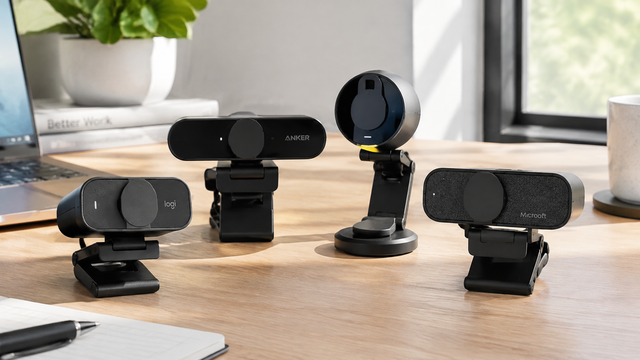
The Elgato Facecam MK.2 is a strong option for professionals who want more control over their camera settings.
It supports Full HD 1080p video at up to 60 frames per second. Its Camera Hub software provides manual controls for settings such as exposure, contrast, and white balance.
Unlike some all-in-one webcams, this model does not include a built-in microphone. You should pair it with a dedicated microphone or quality headset for professional calls.
Key features:
Full HD 1080p video.
Up to 60fps.
HDR support.
Manual camera controls.
Camera Hub software.
Privacy shutter.
Best for: Content creators, streamers, and remote professionals who already own a good microphone.
Consider it if: You prefer adjusting your camera settings instead of relying entirely on automatic image processing.
Quick Comparison: Which Webcam Should You Choose?
| Webcam | Best For | Main Advantage |
|---|---|---|
| Logitech Brio 500 | Everyday meetings | Automatic lighting correction |
| Anker PowerConf C200 | Budget buyers | 2K resolution |
| Logitech MX Brio | Premium users | 4K video and image controls |
| Insta360 Link 2 | Presenters | AI-powered tracking |
| Elgato Facecam MK.2 | Creators | 1080p at 60fps and manual controls |
Note: Features and availability can change. Check the manufacturer's product page for current specifications and compatibility before purchasing.
What to Look for When Buying a Webcam
Before choosing a webcam for your home office, consider these important features.
1. Video Resolution
Most remote workers should look for at least 1080p resolution. A 2K or 4K webcam can provide additional detail for recordings and cropping, but higher resolution does not automatically mean better video calls.
2. Autofocus
Autofocus helps keep your face clear when you move closer to or farther from the camera. It's particularly useful during presentations and demonstrations.
3. Low-Light Performance
Not every home office has professional lighting. Look for a webcam with good exposure adjustment and low-light correction if you regularly work in the evening or in a dim room.
4. Built-In Microphone
Some webcams include built-in microphones, which can be convenient for basic meetings. However, a dedicated USB microphone or headset may provide clearer audio and reduce unwanted background noise.
5. Privacy Protection
A physical privacy shutter helps cover the camera when you're not using it. This is a useful feature for anyone working from a shared home office or handling confidential business discussions.
6. Compatibility and Connectivity
Check whether the webcam supports your operating system and has a compatible USB connection. Also confirm whether its advanced features require additional software.
How to Make Your Webcam Look More Professional
Buying a better webcam is only one part of improving your video calls. Follow these practical tips:
Position the camera at eye level: This creates a more natural viewing angle.
Face a light source: Place a window or desk light in front of you rather than behind you.
Keep your background organized: A clean background helps maintain a professional appearance.
Use a stable internet connection: A reliable connection reduces interruptions and video quality problems.
Check your framing: Keep your head and shoulders comfortably within the camera frame.
Test your microphone: Make sure your voice is clear before important meetings.
Authority Link Placement #1: Add a link to Zoom's official guide, Enhancing Your Video in Zoom, in this section. It explains HD video settings and the bandwidth requirements that can affect video quality.
Do You Really Need a 4K Webcam for Zoom?
Not necessarily.
A 4K webcam can be useful for recording videos, creating tutorials, and cropping footage while maintaining detail. However, your video conferencing platform, account settings, computer, and internet connection can limit the resolution other participants actually receive.
For example, Zoom's official documentation explains that HD video availability depends on account eligibility and technical requirements. Standard HD and Full HD are not automatically available to every account.
For most everyday remote workers, a reliable 1080p webcam with good lighting is a sensible investment.
Authority Link Placement #2: Add a link to Zoom's official guide, Enabling HD Video for Zoom Meetings, after this paragraph.
Final Verdict: Which Webcam Is Best for Your Home Office?
The best webcam depends on how you work.
Choose the Logitech Brio 500 for everyday remote meetings.
Choose the Anker PowerConf C200 if you're shopping on a budget.
Choose the Logitech MX Brio if you want premium 4K recording and image controls.
Choose the Insta360 Link 2 if you move around while teaching or presenting.
Choose the Elgato Facecam MK.2 if you want smooth 60fps video and manual controls.
You don't have to spend hundreds of dollars to look professional on video calls. Start with your actual needs, improve your lighting, and choose a webcam that fits your workspace.
What Webcam Are You Using?
A good webcam can make a real difference in your remote work experience. Whether you prefer a budget-friendly 1080p camera or a premium 4K model, the right choice can help you look clearer and feel more confident during online meetings.
Which webcam would you choose for your home office? Share your experience or questions in the comments below. If this guide helped you, share it with another remote worker who wants to upgrade their video call setup.


No comments